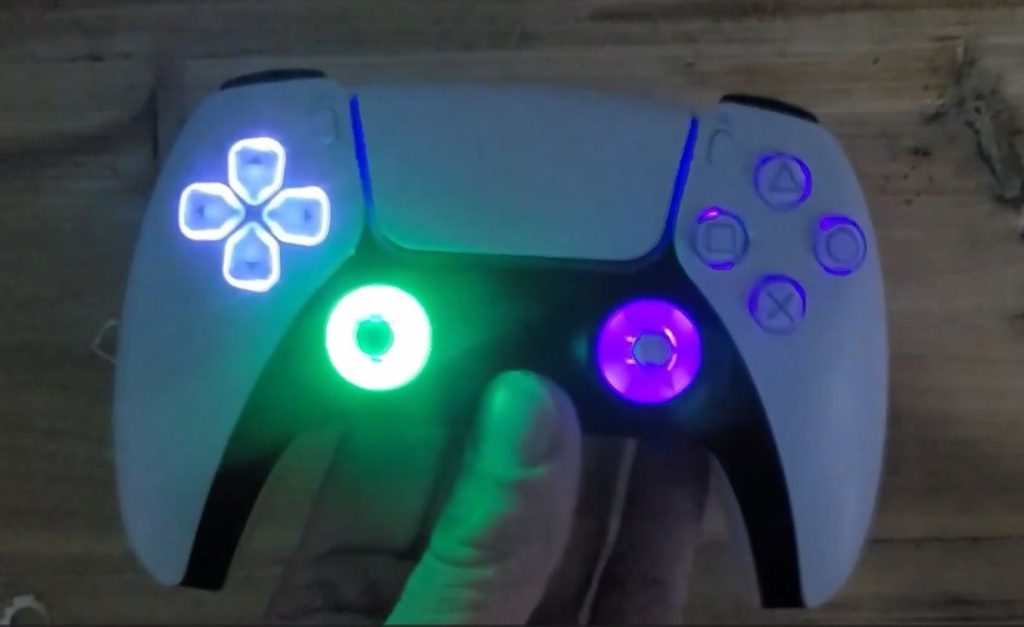
Would you like to give your PS5 controller a stylish, customized upgrade with a ps5 led kit? Then you’ve come to the right place! In this detailed guide, I’ll show you how to easily install the LED kit in your PS5 controller yourself. You only need a few tools, mainly a soldering iron and a screwdriver. The LED kit is completely configurable – you can freely choose colors and thus adapt your controller perfectly to your design.
You can find the LED kit on our website, and we also have other cool products that you can use to customize your PS5 controller, such as the PS5 Controller Configurator, PS5 ModKit, PS5 Remapper Paddle Set and the PS5 Case Configurator.
What you need to install the PS5 LED kit
- PS5 Controller
- PS5 LED Kit (available here)
- Soldering iron
- Screwdriver
- Optional: transparent or colored analog sticks that amplify the light
Step 1: Open and prepare the controller
First, you need to remove the front cover of your PS5 controller. Then loosen the triggers of the L1 and R1 buttons with a screwdriver.

If your controller has an integrated paddle, this is not a problem – the LED kit also works with it.
Now take out the battery and remove the screw in the middle of the controller. You can then remove the battery cover.

You must carefully remove the two flex cables for the microphone and touchpad. Then remove the two additional screws on both sides of the controller and the screw in the battery holder.

Step 2: Lift out the circuit board and prepare the LED kit
Once you have disconnected the flex cables, you can carefully lift the circuit board out of the housing. Turn the circuit board to get better access to the places where you will solder later.
The LED kit is available on our website, where you can configure it completely. You can freely choose which color should light up where. You do not have to use the complete kit – it is also possible to use it only for the analog sticks or one side.

There is double-sided adhesive tape on the back of the LED kit. Remove the protective film and carefully stick the LED kit onto the controller keypad.

Step 3: Laying cables and preparing connections
Lay the power supply cables and the cables for the analog sticks out to the side so that they are not pinched. You can also route the cables over the speaker socket if necessary.

Now you can put on the transparent or colored analog sticks. These enhance the LED color and create a pleasant look, as the light shines through the sticks and is diffused.

Step 4: Soldering the LED cables to the circuit board
The soldering iron is your most important tool for this step. Depending on the controller version (e.g. BDM010, BDM020 etc.), the soldering points for the LED power supply are different, but they are all located in the area of the analog sticks.
For the positive pole, solder to the designated point on the circuit board, for the negative pole to one of the four points on the analog sticks on the back. Here you can find the soldering points for LED kits on all BDM models

Step 5: Fixing the LED kit and reassembling the controller
Once you have soldered the cables, you can reinsert the circuit board into the controller housing. Make sure that you do not pinch the flex cables for the microphone and touchpad.

Replace the screws on the side to secure the circuit board. You can then replace the battery cover and fasten the middle screw. Then put the back case back on.

Finally, the front cover and the L1 and R1 buttons are screwed back on. Your controller is now ready for use again and you can enjoy the new LED lighting.

Tips for the perfect installation of your PS5 LED kit
- Precise soldering: Take care to heat the soldering points cleanly and avoid bridging.
- Cable management: Lay the cables in such a way that they do not get pinched or interfere with playing comfort.
- Choice of sticks: Transparent or white analog sticks enhance the lighting and look particularly good.
- Flexibility: You can configure the LED kit individually – illuminate only one side or just the analog sticks – to suit your taste.
- Secure screws: Always tighten screws firmly, but do not overtighten to avoid damaging the housing.
Why a PS5 LED kit upgrades your controller setup
A ps5 led kit enhances the look of your controller enormously and makes it a real eye-catcher. The individually configurable colors allow you to match your controller exactly to your setup or your favorite colors.
The LED kit is also compatible with all current PS5 controller versions, whether with or without paddle. It is a simple but effective modification that will bring you a lot of gaming fun and make your controller stand out from the crowd.
If you want to get even more out of your PS5 controller, take a look at the other products on my website:
- PS5 Configurator – Design your own custom controller
- PS5 ModKit – Paddles and Smarttrigger without soldering
- PS5 Remapper Paddle Set – Programmable key assignment
- PS5 case configurator – Different colors and designs for your case
Conclusion: Simple installation, great effect
Installing the ps5 led kit is really straightforward and can be done in no time at all. With just a soldering iron and screwdriver, you can equip your PS5 controller with cool LED lighting that you can configure to your liking.
I hope this guide helps you to customize your controller and have even more fun while gaming. For more tips and products related to PS5 controllers, check out the other configurators and modkits.
Good luck with the installation and enjoy your new, illuminated PS5 controller!


